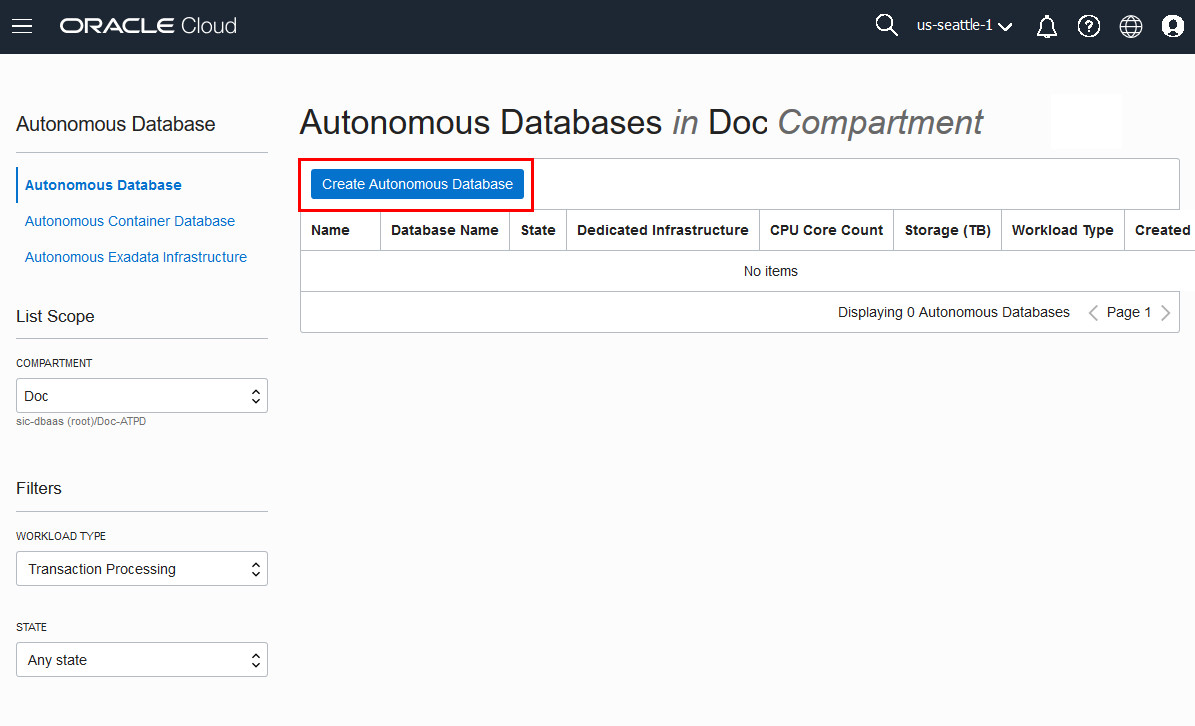
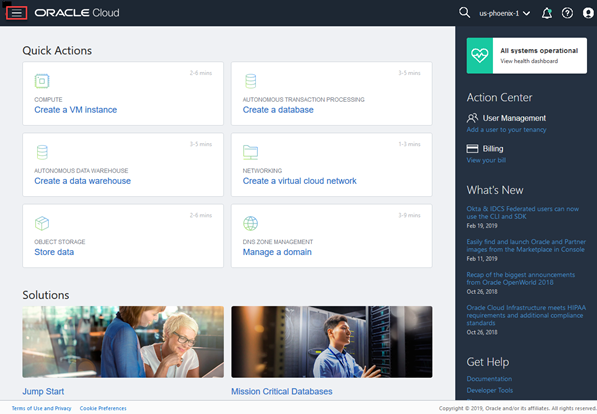
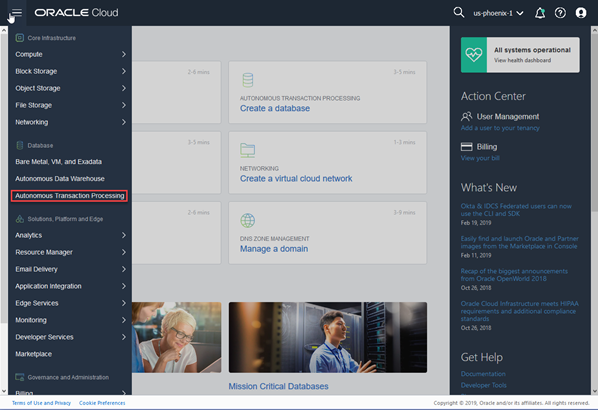
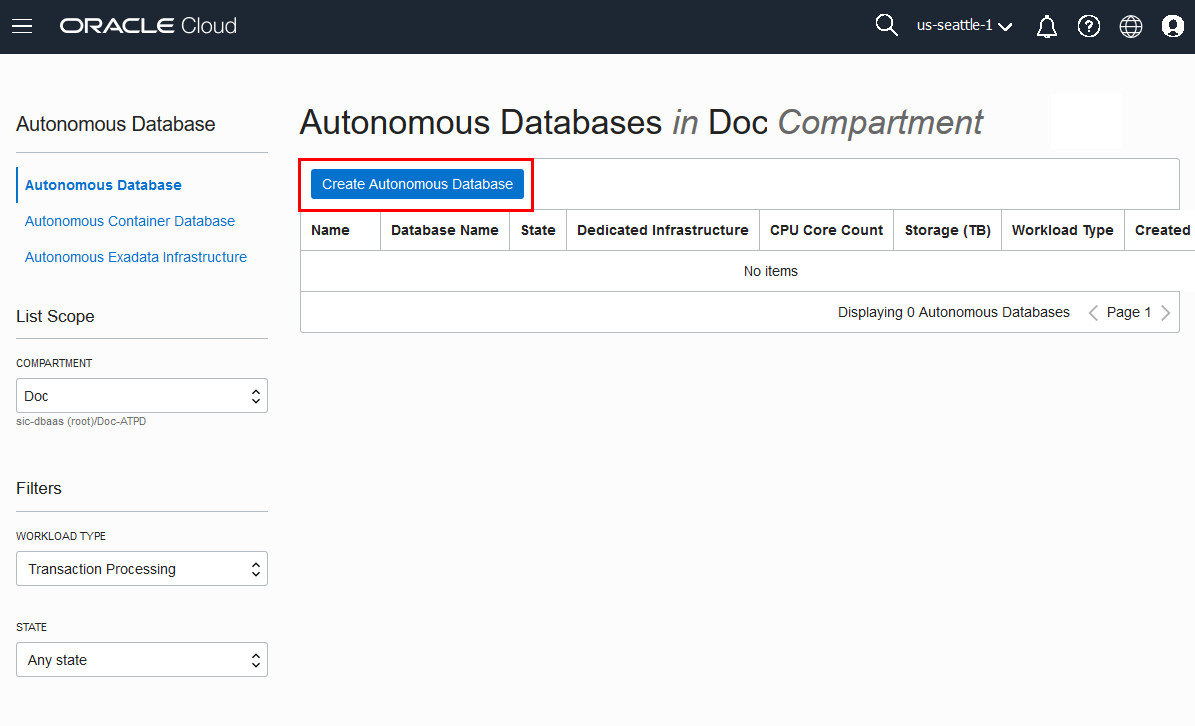
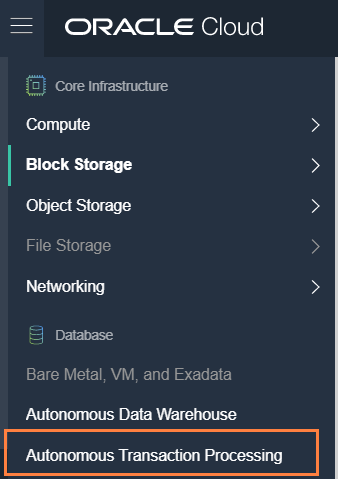
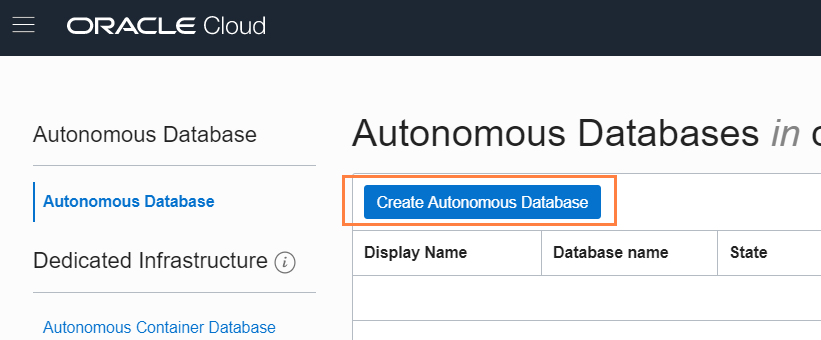
The console for Autonomous Database displays. You can use theList Scopedrop-down menu to select a compartment; in this example theDoccompartment is selected. Clickherefor documentation on creating compartments.ㄹㅇㄴㅁㄹ
This console shows no databases. If there were a long list of databases, you could filter the list by using theFiltersdrop-down menu to filter by the state of the databases (available, stopped, terminated, and so on). You can also sort by workload type. Here Transaction Processing is selected. ClickCreate Autonomous Databaseto create a database instance.Description of the illustration create_autonomous_transaction_processing_database
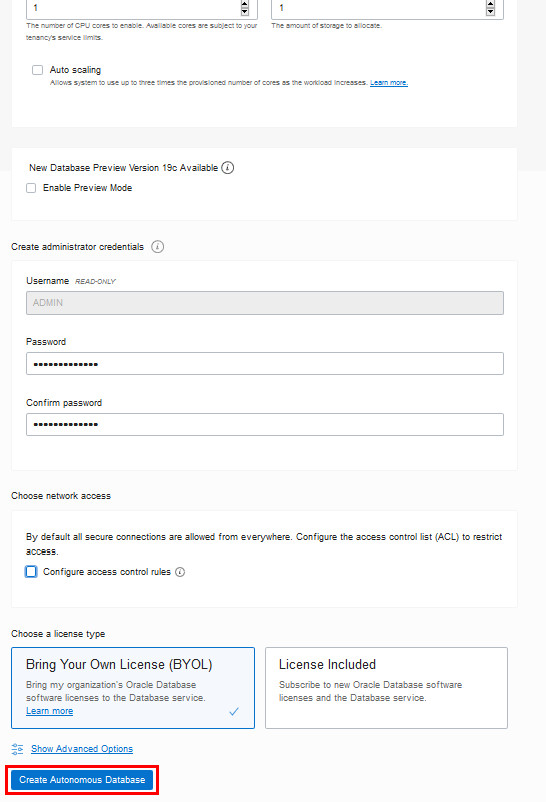
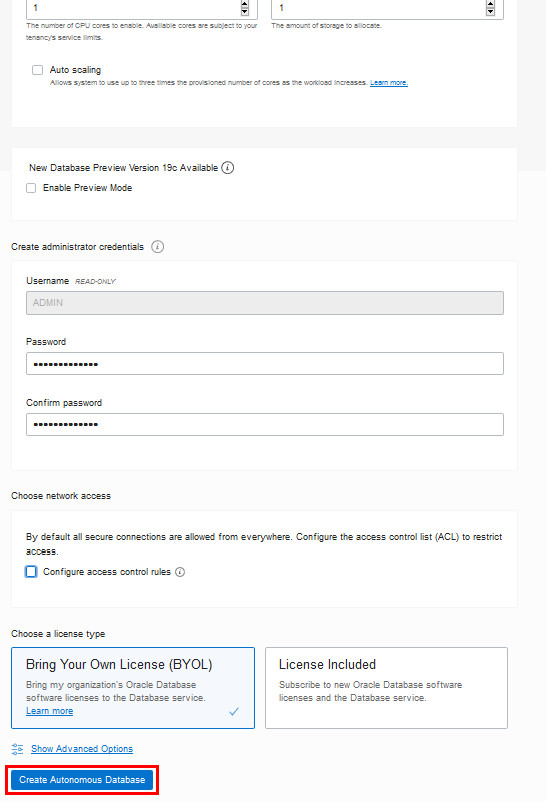
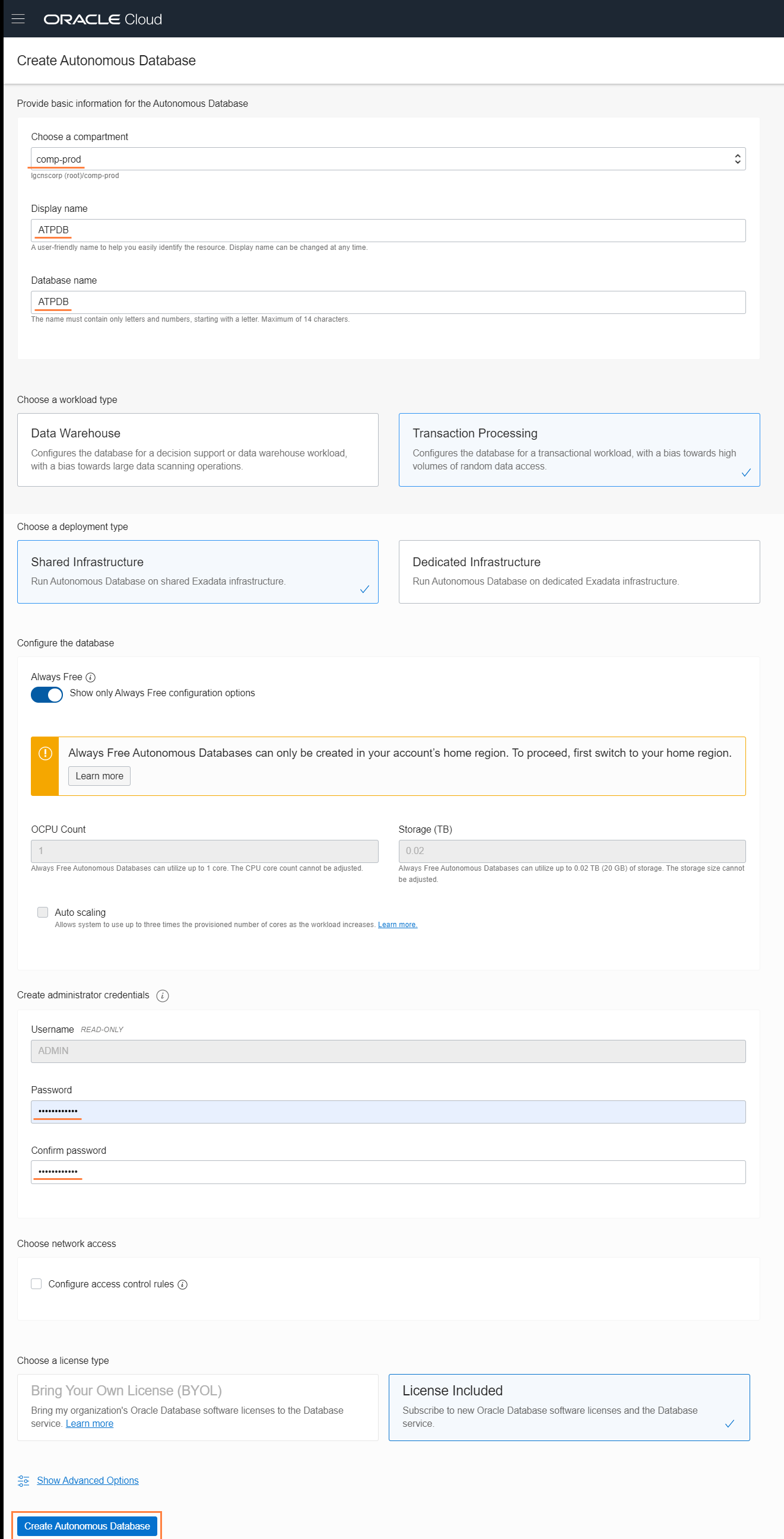
The Create Autonomous Database dialog appears. Enter the following information:
Provide basic information for the Autonomous Database:
Choose a compartment- Select a compartment for the database from the drop-down list.
Display Name- Enter a name for the database for display purposes.
Database Name- Use letters and numbers only, starting with a letter. Maximum length is 14 characters. (Underscores not initially supported.)
Choose a workload type. Select the workload type for your database from the choices:
Transaction Processing- For this tutorial, chooseTransaction Processingas the workload type. Do not choose Data Warehouse.
Data Warehouse- (Alternatively you can chosen Transaction Processing as the workload type.)
Choose a deployment type. When you choose Transaction Processing as the workload type, you are presented with a choice of two deployment types:
Serverless- For this tutorial, select Serverless. This choice creates the autonomous database without provisioning a dedicated infrastructure.
Dedicated Infrastructure- (Alternatively, you can choose the Dedicated Infrastructure deployment type to create the autonomous database on a dedicated Exadata infrastructure. This tutorial does not cover the Dedicated Infrastructure deployment type.)
Configure the database:
Always Free- For this tutorial, do not activate this option. Always Free databases are provided free of charge, and are suitable for small-scale applications or for learning about and exploring Oracle Cloud Infrastructure.
CPU core count- Number of CPUs for your service.
Storage (TB)- Select your storage capacity in terabytes. It is the actual space available to your service instance, including system-related space allocations.
Auto Scaling- For this tutorial, do not activate this option. If you select the auto scaling option, Autonomous Transaction Processing can use up to three times more CPU and IO resources than specified by the number of OCPUs. When auto scaling is enabled, if your workload requires additional CPU and IO resources, the database automatically uses the resources without any manual intervention required.
Enable Preview Mode- For this tutorial, do not activate this option. Oracle periodically provides a preview version of Autonomous Database. You can enable the preview mode to test your applications and become familiar with features in the next release of Autonomous Database.
Create administrator credentials:
PasswordandConfirm Password- Specify the password for ADMIN user of the service instance. The password must meet the following requirements:
The password must be between 12 and 30 characters long and must include at least one uppercase letter, one lowercase letter, and one numeric character.
The password cannot contain the username.
The password cannot contain the double quote (") character.
The password must be different from the last 4 passwords used.
The password must not be the same password that is set less than 24 hours ago.
Choose network access:
By default, secure connections are allowed from all IP addresses. You can control and restrict access to your Autonomous Database by setting network access control lists (ACLs). You can select from 4 IP notation types: IP Address, CIDR Block, Virtual Cloud Network, Virtual Cloud Network OCID).
Choose a license type:
Bring Your Own License- Select when you have existing licenses.
License Included- Select when you want to subscribe to new database software licenses and the database cloud service.
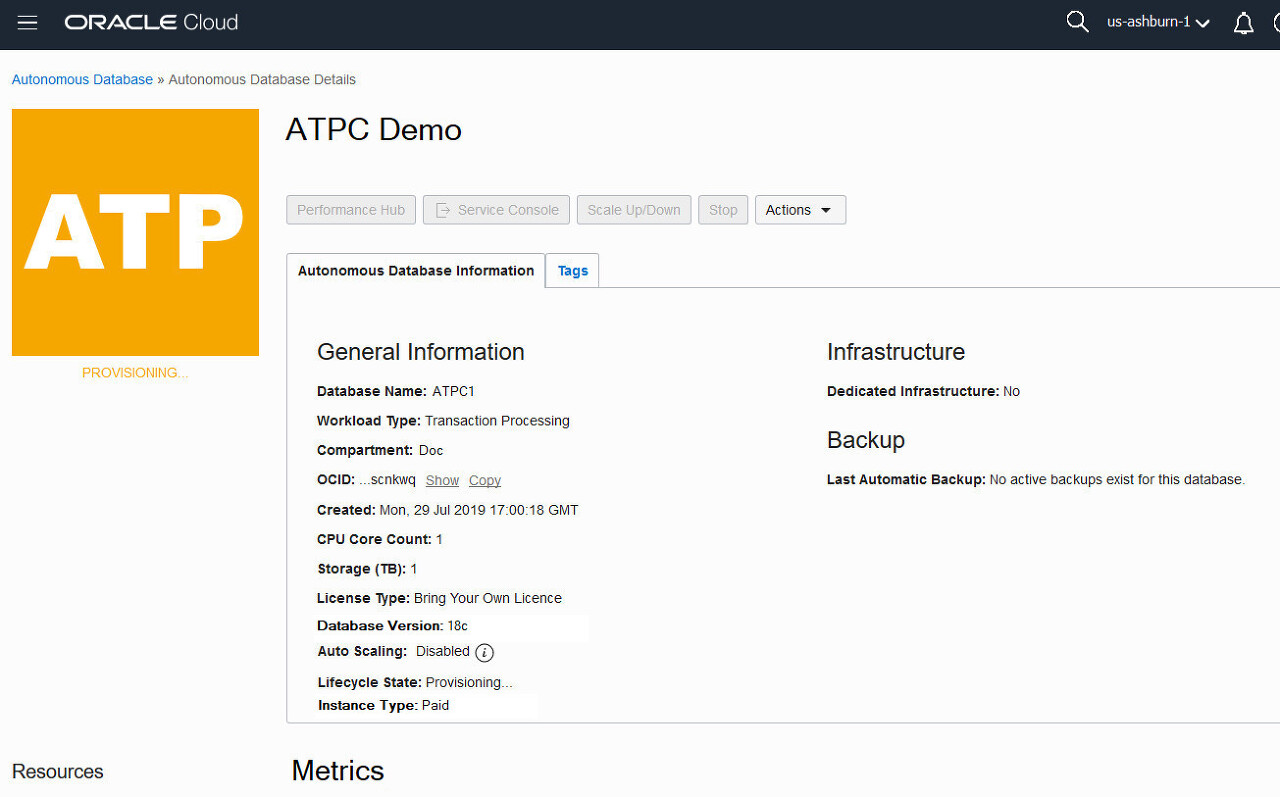
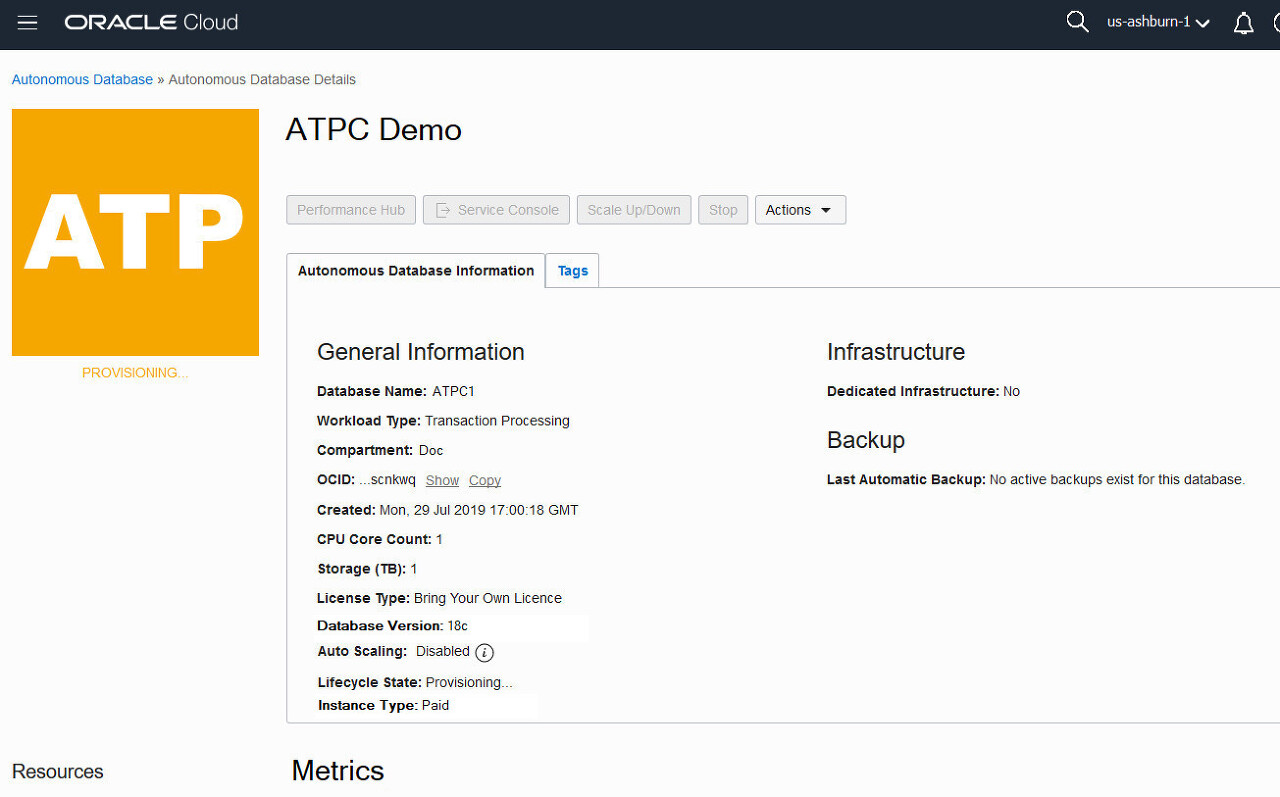
The Create Autonomous Database dialog closes. On the console, the Lifecycle State field indicates that the database isProvisioning. When creation is completed, the Lifecycle State field changes toAvailable.Description of the illustration provisioning_state
자율 데이터베이스 콘솔이 표시됩니다. 목록 범위 드롭 다운 메뉴를 사용하여 구획을 선택할 수 있습니다. 이 예에서는 Doc 구획이 선택되었습니다. 구획 만들기에 대한 설명서를 보려면 여기를 클릭하십시오
자율 데이터베이스 콘솔이 표시됩니다. 목록 범위 드롭 다운 메뉴를 사용하여 구획을 선택할 수 있습니다. 이 예에서는 Doc 구획이 선택되었습니다. 구획 만들기에 대한 설명서를 보려면 여기를 클릭하십시오.
Download the Credentials Zip File
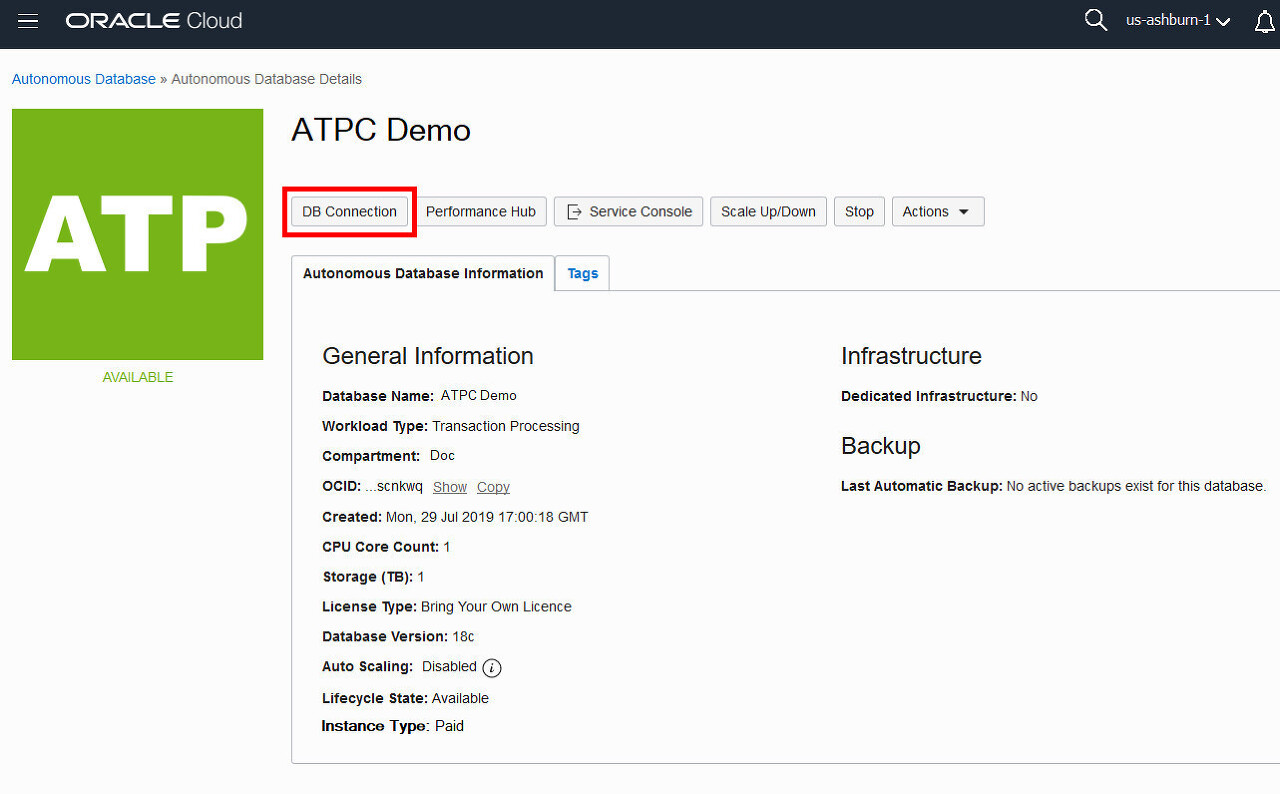
Once you have created the database, download the credentials zip file for client access to that database. You will use this file in the next step, and in the next tutorial to connect SQL Developer to your Autonomous Transaction Processing database.
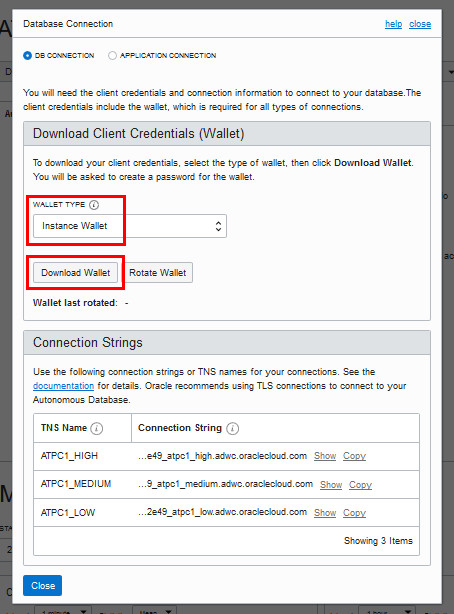
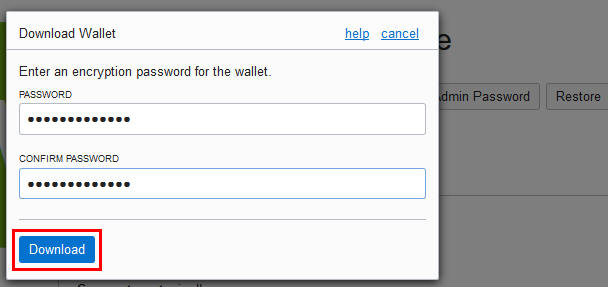
The Database Connection dialog opens for downloading client credentials. For wallet type, selectInstance Wallet. Note: Oracle recommends you download the database-specific wallet type, Instance Wallet, to provide to your end users and for application use whenever possible. The other wallet type, Regional wallet, should only be used for administrative purposes that require potential access to all Autonomous Databases within a region. ClickDownload Wallet. Description of the illustration database_connection_dialog
Store the zip file and make note of the password. You will use the zip file in the next step to define a SQL Developer connection to your Autonomous Transaction Processing database.
Define a SQL Developer Connection
Define a SQL Developer connection to the database in your Autonomous Transaction Processing service.
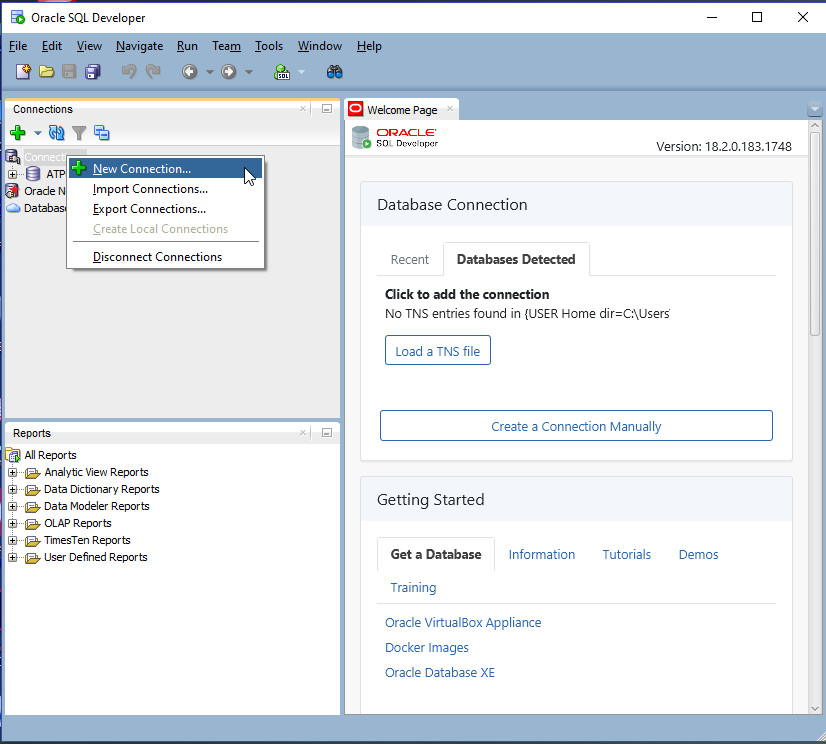
Open SQL Developer on your local computer. In the Connections panel, right-clickConnectionsand selectNew Connection. Note: Depending on your version of SQL Developer, donotright-clickCloud ConnectionorDatabase Schema Service Connections. That menu selection is for connecting to a different Oracle cloud service, the Oracle Database Schema Service. Description of the illustration select_new_connection
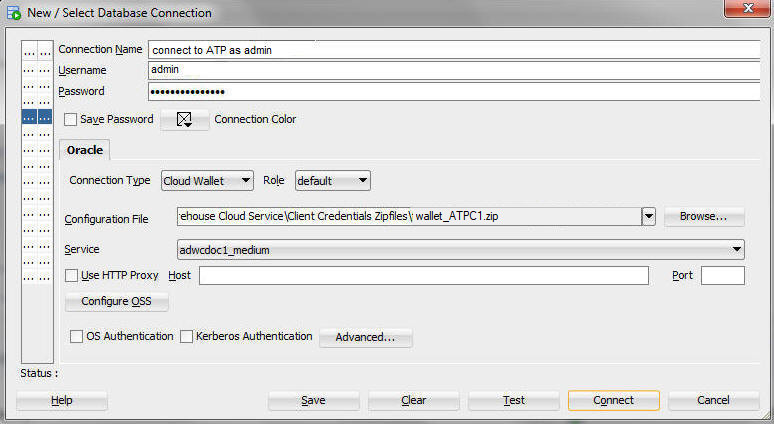
The New/Select Database Connection dialog appears. Enter the following information:
Connection Name - Enter the name for this cloud connection.
Username - Enter the database username. Use the default administrator database account (admin) that is provided as part of the service.
Password - Enter theadminuser's password that you or your Autonomous Transaction Processing administrator specified when creating the service instance.
Connection Type - SelectCloud Wallet.
Configuration File - ClickBrowse, and select theClient Credentialszip file, downloaded from the Autonomous Transaction Processing service console by you, or given to you by your Autonomous Transaction Processing administrator.
Service - In the drop-down menu, service selections are prepended with database names. Select the tpurgent, tp, high, medium, or low menu item for your database. These service levels map to the TPURGENT, TP, HIGH, MEDIUM and LOW consumer groups, which provide different levels of priority for your session. Note: Earlier versions of SQL Developer may not support this feature.
ClickTest. Status: Success displays at the left-most bottom of the New/Select Database Connection dialog.
ClickConnect. An entry for the new connection appears under Connections.
Create a User in your Autonomous Transaction Processing Database
Once you have connected SQL Developer to your Autonomous Transaction Processing database, use a SQL Developer worksheet to define acreate userstatement to create the useratpc_user. In the next tutorial, you will create sales history tables in theatpc_userschema and load data into these tables from an object store.
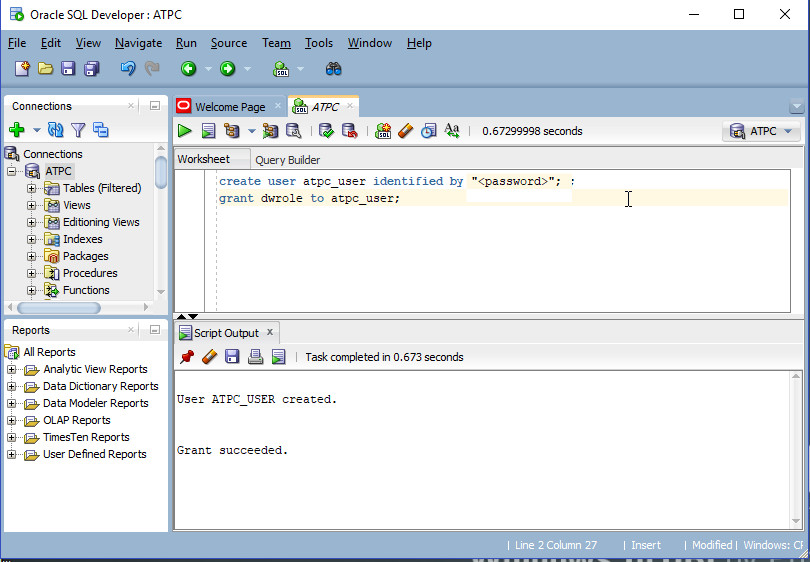
Open a SQL Developer worksheet and run the following SQL statements to create the useratpc_user, swapping in a password with the guidelines provided in the following Note section. create user atpc_user identified by "<password>"; grant dwrole to atpc_user;Description of the illustration sql_developer_commands_create_atpc_userNote: Autonomous Transaction Processing requires strong passwords. The password you specify must meet the default password complexity rules. This database checks for the following requirements when you create or modify passwords:
The password must be between 12 and 30 characters long and must include at least one uppercase letter, one lowercase letter, and one numeric character.
The password cannot contain the username.
The password cannot be one of the last four passwords used for the same username.
The password cannot contain the double quote (") character
Note: Autonomous Transaction Processing databases come with a pre-defined database role namedDWROLE. This role provides the common privileges for a database user:CREATE ANALYTIC VIEW, CREATE ATTRIBUTE DIMENSION, ALTER SESSION, CREATE HIERARCHY, CREATE JOB, CREATE MINING MODEL, CREATE PROCEDURE, CREATE SEQUENCE, CREATE SESSION, CREATE SYNONYM, CREATE TABLE, CREATE TRIGGER, CREATE TYPE, CREATE VIEW, READ,WRITE ONdirectoryDATA_PUMP_DIR, EXECUTEprivilege on the PL/SQL packageDBMS_CLOUD
In the next tutorial, "Connecting SQL Developer to Autonomous Transaction Processing", you will connect SQL Developer to your Autonomous Transaction Processing database as useratpc_user, and defineSHtables(sales history tables from an Oracle sample schema) for that user. Later, you will load data into those tables from an Object Store.
The console for Autonomous Database displays. You can use theList Scopedrop-down menu to select a compartment; in this example theDoccompartment is selected. Clickherefor documentation on creating compartments. This console shows no databases. If there were a long list of databases, you could filter the list by using theFiltersdrop-down menu to filter by the state of the databases (available, stopped, terminated, and so on). You can also sort by workload type. Here Transaction Processing is selected. ClickCreate Autonomous Databaseto create a database instance.Description of the illustration create_autonomous_transaction_processing_database
The Create Autonomous Database dialog appears. Enter the following information:
Provide basic information for the Autonomous Database:
Choose a compartment- Select a compartment for the database from the drop-down list.
Display Name- Enter a name for the database for display purposes.
Database Name- Use letters and numbers only, starting with a letter. Maximum length is 14 characters. (Underscores not initially supported.)
Choose a workload type. Select the workload type for your database from the choices:
Transaction Processing- For this tutorial, chooseTransaction Processingas the workload type. Do not choose Data Warehouse.
Data Warehouse- (Alternatively you can chosen Transaction Processing as the workload type.)
Choose a deployment type. When you choose Transaction Processing as the workload type, you are presented with a choice of two deployment types:
Serverless- For this tutorial, select Serverless. This choice creates the autonomous database without provisioning a dedicated infrastructure.
Dedicated Infrastructure- (Alternatively, you can choose the Dedicated Infrastructure deployment type to create the autonomous database on a dedicated Exadata infrastructure. This tutorial does not cover the Dedicated Infrastructure deployment type.)
Configure the database:
Always Free- For this tutorial, do not activate this option. Always Free databases are provided free of charge, and are suitable for small-scale applications or for learning about and exploring Oracle Cloud Infrastructure.
CPU core count- Number of CPUs for your service.
Storage (TB)- Select your storage capacity in terabytes. It is the actual space available to your service instance, including system-related space allocations.
Auto Scaling- For this tutorial, do not activate this option. If you select the auto scaling option, Autonomous Transaction Processing can use up to three times more CPU and IO resources than specified by the number of OCPUs. When auto scaling is enabled, if your workload requires additional CPU and IO resources, the database automatically uses the resources without any manual intervention required.
Enable Preview Mode- For this tutorial, do not activate this option. Oracle periodically provides a preview version of Autonomous Database. You can enable the preview mode to test your applications and become familiar with features in the next release of Autonomous Database.
Create administrator credentials:
PasswordandConfirm Password- Specify the password for ADMIN user of the service instance. The password must meet the following requirements:
The password must be between 12 and 30 characters long and must include at least one uppercase letter, one lowercase letter, and one numeric character.
The password cannot contain the username.
The password cannot contain the double quote (") character.
The password must be different from the last 4 passwords used.
The password must not be the same password that is set less than 24 hours ago.
Choose network access:
By default, secure connections are allowed from all IP addresses. You can control and restrict access to your Autonomous Database by setting network access control lists (ACLs). You can select from 4 IP notation types: IP Address, CIDR Block, Virtual Cloud Network, Virtual Cloud Network OCID).
Choose a license type:
Bring Your Own License- Select when you have existing licenses.
License Included- Select when you want to subscribe to new database software licenses and the database cloud service.
The Create Autonomous Database dialog closes. On the console, the Lifecycle State field indicates that the database isProvisioning. When creation is completed, the Lifecycle State field changes toAvailable.Description of the illustration provisioning_state
sqlselect * from DBA_HIST_SQLTEXT where sql_id ='4b6z0rh5jrktx'; select * from DBA_HIST_SQL_PLAN where sql_id ='4b6z0rh5jrktx' order by plan_hash_value, id; select * from DBA_HIST_SQLSTAT where sql_id ='4b6z0rh5jrktx'; select * from v$sql where sql_id ='4b6z0rh5jrktx';
select sql_id, plan_hash_value, id, count(*) from dba_hist_sql_plan group by sql_id, plan_hash_value, id having count(*) > 1; WRH$_SQL_PLAN select * from( select a.aid, b.bid from (select distinct sql_id as aid from DBA_HIST_SQLTEXT) A full outer join (select sql_id as bid from DBA_HIST_SQLSTAT ) B on a.aid = b.bid) c where c.bid is null;
select * from( select a.aid, b.bid from (select distinct sql_id as aid from sys.WRH$_SQLTEXT) A full outer join (select sql_id as bid from sys.WRH$_SQLSTAT ) B on a.aid = b.bid) c where c.bid is null;
select * FROM WRM$_SNAPSHOT sn, WRH$_SQLSTAT sql WHERE sn.snap_id = sql.snap_id AND sn.dbid = sql.dbid AND sn.instance_number = sql.instance_number AND sn.status = 0;
select * From dba_hist_snapshot where snap_id = 96410 order by 1 desc; select * From sys.WRH$_SQLTEXT b where not exists(select 'x' from sys.WRH$_SQLstat a where a.sql_id = b.sql_id);
select * From dba_objects where object_name='AWR_ROOT_SQLTEXT'; select * From dict where table_name='AWR_ROOT_SQLTEXT';
select sql_id, plan_hash_value, count(*) from DBA_HIST_SQLSTAT s where s.parsing_schema_name = 'KALMHS' group by sql_id, plan_hash_value order by 1 ; ---------------------- -- sql_id 추출 ---------------------- select sql_id, sql_text, replace(dbms_lob.substr(sql_text, 20, 1), chr(10), ' '), (select command_name from DBA_HIST_SQLCOMMAND_NAME where command_type=t.command_type) type from DBA_HIST_SQLTEXT T where exists (select 'EXIST' from DBA_HIST_SQLSTAT S where t.sql_id = s.sql_id and s.parsing_schema_name = 'KALMHS'); ;
select * from ( select t.sql_id, t.sql_text, replace(dbms_lob.substr(t.sql_text, 20, 1), chr(10), ' '), (select command_name from DBA_HIST_SQLCOMMAND_NAME where command_type=t.command_type) type, p.plan_hash_value from DBA_HIST_SQLTEXT T, (select sql_id, plan_hash_value from (select sql_id, plan_hash_value, row_number() over (partition by sql_id order by sql_id, timestamp desc) row_num from DBA_HIST_SQL_PLAN where 1 = 1) -- 전체 SQL where row_num = 1) P where t.sql_id = p.sql_id(+)) where plan_hash_value is null and type='SELECT';
select a.sql_id, b.sql_id, b.command_type from (select distinct sql_id from v$sql) a, DBA_HIST_SQLTEXT b where a.sql_id = b.sql_id(+) ;-- where sql_id='3hc96wfvxp4tk'; -- 56196, 9610 select distinct sql_id from DBA_HIST_SQLTEXT; --> 5540
select sql_id, sql_text, sql_t, type, plan_hash_value, parsing_schema_name from ( select t.sql_id, t.sql_text, replace(dbms_lob.substr(t.sql_text, 20, 1), chr(10), ' ') sql_t, (select command_name from DBA_HIST_SQLCOMMAND_NAME where command_type=t.command_type) type, p.plan_hash_value, (select parsing_schema_name from DBA_HIST_SQLSTAT S where 1=1 and s.sql_id = t.sql_id and s.plan_hash_value = p.plan_hash_value and rownum = 1) parsing_schema_name from DBA_HIST_SQLTEXT T, (select sql_id, plan_hash_value from (select sql_id, plan_hash_value, row_number() over (partition by sql_id order by sql_id, timestamp desc) row_num from DBA_HIST_SQL_PLAN where 1 = 1) -- 전체 SQL where row_num = 1) P where t.sql_id = p.sql_id and exists ( select 'X' from DBA_HIST_SQLSTAT S where s.parsing_schema_name in ('KALMHS','KALPPO','NETBACKUP','KALPPO_SSO','KALSTD') and module like '%%' and s.sql_id = t.sql_id and s.plan_hash_value = p.plan_hash_value) ) order by 1;
select t.*, sql_id, replace(dbms_lob.substr(t.sql_text, 20, 1), chr(10), ' ') sql_t, (select command_name from DBA_HIST_SQLCOMMAND_NAME where command_type=t.command_type) type, parsing_schema_name From v$sql t where t.parsing_schema_name in ('KALMHS','KALPPO','NETBACKUP','KALPPO_SSO','KALSTD');
where plan_hash_value is null and type='SELECT';
select sql_id, count(*) From v$sql group by sql_id having count(*) > 1;
select * From dba_tab_columns where column_name = 'MODULE' order by table_name;
select * from v$sql where sql_id='grvaq6wc3s189';
select * From dict where table_name like '%SHARED%'; select * from V$SQL_SHARED_CURSOR where sql_id='grvaq6wc3s189';
SELECT A.SQL_ID, A.SQL_TEXT, A.COMMAND_TYPE, --> IF NEEDED B.PLAN_HASH_VALUE, B.ID, B.OPERATION, B.OPTIONS, B.OBJECT_OWNER, B.OBJECT_NAME, B.OBJECT_TYPE, B.OPTIMIZER, B.PARTITION_START, B.PARTITION_STOP, B.PARTITION_ID FROM DBA_HIST_SQLTEXT A, DBA_HIST_SQL_PLAN B WHERE A.DBID = B.DBID AND A.SQL_ID = B.SQL_ID AND A.SQL_ID IN('03y5xw17vncxd') AND EXISTS (SELECT 'E' FROM DBA_HIST_SQLSTAT C WHERE A.DBID = C.DBID AND A.SQL_ID = C.SQL_ID AND B.SQL_ID = C.SQL_ID AND B.PLAN_HASH_VALUE <> C.PLAN_HASH_VALUE AND PARSING_SCHEMA_NAME IN('KALMHS')) ORDER BY A.DBID, A.SQL_ID, B.PLAN_HASH_VALUE, B.ID;
V$SQL에 뷰에는 SQL 문의 복사본이 두 개 이상 있을 수 있습니다. 예를 들어, 두 명의 사용자에게 각각 T 테이블이 있다고 가정해 보겠습니다. USERA가 SELECT * FROM T를 쿼리합니다. 마찬가지로 USERB도 SELECT * FROM T를 실행합니다. 이 두 SQL 문이 같은 것처럼 보이지만 다른 쿼리입니다. 따라서 V$SQL에는 두 개의 SQL문이 존재합니다.
주어진 SQL 문에 대해 V$SQL에 둘 이상의 커서가 존재하는 데에는 여러 가지 이유가 있습니다. 쿼리할 예제 테이블을 생성합니다.
SQL> create table t 2 ( x varchar2(30) primary key, 3 y int ); SQL> begin dbms_stats.set_table_stats ( user, 'T', numrows => 1000000, numblks=>100000 ); end; /
the optimizer is told that there are 1,000,000 rows in it. Now we'll ensure that the shared pool has no cached copies of SQL against this table (this is for demonstration purposesdo not do this on a production system!):
옵티마이저에게 1,000,000개의 행이 있다고 알려줍니다. 공유 풀에 이 테이블에 대해 캐시된 SQL 복사본이 없는지 확인합니다(이는 데모용입니다. 프로덕션 시스템에서는 이 작업을 수행하면 안됩니다.)
SQL> alter system flush shared_pool;
SQL> select sql_id, sql_text from v$sql where upper(sql_text) like 'SELECT % T LOOK_FOR_ME %B1_';
이제 Listing 1과 같이 동일한 쿼리 텍스트를 네 번 실행하는 PL/SQL 블록을 구성합니다.
Code Listing 1: PL/SQL block executing query text four times
SQL> declare

     l_x_number     number;
     l_x_string     varchar2(30);
begin
     execute immediate 'alter session set optimizer_mode=all_rows';
     for x in (select * from t look_for_me where x = l_x_number) loop null; end loop;
     for x in (select * from t look_for_me where x = l_x_string) loop null; end loop;

     execute immediate 'alter session set optimizer_mode=first_rows';
     for x in (select * from t look_for_me where x = l_x_number) loop null; end loop;
     for x in (select * from t look_for_me where x = l_x_string) loop null; end loop;
end;
/
Listing 2와 같이 모두 정확히 동일한 SQL_ID를 가지고 있다는 것을 알 수 있기 때문에 그것들이 동일하다는 것을 압니다.
해당 블록을 실행한 후 V$SQL을 살펴보면 Listing 1에서 실행한 동일한 SQL 문에 대해 하나씩 4개가 있음을 알 수 있습니다. Listing 2와 같이 모두 동일한 SQL_ID를 가지고 있다는 것을 알 수 있습니다.
Code Listing 2: Query on V$SQL showing same SQL_ID for four query executions
SQL> select sql_id, sql_text 2 from v$sql 3 where upper(sql_text) 4 like 5 'SELECT % T LOOK_FOR_ME %B1_';

SQL_ID SQL_TEXT
------------- ----------------------------------------
1qqtru155tyz8 SELECT * FROM T LOOK_FOR_ME WHERE X = :B1
1qqtru155tyz8 SELECT * FROM T LOOK_FOR_ME WHERE X = :B1
1qqtru155tyz8 SELECT * FROM T LOOK_FOR_ME WHERE X = :B1
1qqtru155tyz8 SELECT * FROM T LOOK_FOR_ME WHERE X = :B1

4 rows selected.
이 4개의 SQL은 동일하게 보이지만 서로 다릅니다.
Cursor 1 used ALL_ROWS and bound a NUMBER datatype.
Cursor 2 used ALL_ROWS and bound a VARCHAR2 datatype.
Cursor 3 used FIRST_ROWS with a NUMBER datatype.
Cursor 4 used FIRST_ROWS with a VARCHAR2 datatype.
Listing 3은 커서 1과 2에 대한 계획을 보여줍니다. 이 두 계획(자식 번호 0과 자식 번호 1, Oracle Database 번호가 0부터 시작)은 바인드변수 때문에 다릅니다. 문자열을 숫자와 비교할 때 암시적으로 to_number()가 문자열에 배치됩니다. to_number(x)를 인덱싱하지 않았으므로 첫 번째 커서에 대해 전체 테이블 스캔을 수행하고 VARCHAR2에 바인딩된 두 번째 커서는 인덱스를 사용합니다.
Code Listing 3: Plans for cursors 1 and 2
SQL> select * from table( dbms_xplan.display_cursor('1qqtru155tyz8', 0 ) );

SQL_ID  1qqtru155tyz8, child number 0
-------------------------------------
SELECT * FROM T LOOK_FOR_ME WHERE X = :B1

Plan hash value: 1601196873
--------------------------------------------------------------------------
| Id  | Operation         | Name | Rows  | Bytes | Cost (%CPU)| Time     |
--------------------------------------------------------------------------
|   0 | SELECT STATEMENT  |      |       |       | 27112 (100)|          |
|*  1 |  TABLE ACCESS FULL| T    |     1 |    30 | 27112   (1)| 00:00:02 |
--------------------------------------------------------------------------

Predicate Information (identified by operation id):
---------------------------------------------------
     1 - filter(TO_NUMBER("X")=:B1)

SQL> select * from table( dbms_xplan.display_cursor('1qqtru155tyz8', 1 ) );

SQL_ID  1qqtru155tyz8, child number 1
-------------------------------------
SELECT * FROM T LOOK_FOR_ME WHERE X = :B1

Plan hash value: 2324989435
---------------------------------------------------------------------------------
| Id  | Operation                   | Name         | Rows  | Bytes | Cost (%CPU)|
---------------------------------------------------------------------------------
|   0 | SELECT STATEMENT            |              |       |       |     1 (100)|
|   1 |  TABLE ACCESS BY INDEX ROWID| T            |     1 |    30 |     0   (0)|
|*  2 |   INDEX UNIQUE SCAN         | SYS_C0010204 |     1 |       |     0   (0)|
---------------------------------------------------------------------------------

Predicate Information (identified by operation id):
---------------------------------------------------
   2 - access("X"=:B1)
Listing 4 커서 3과 4(자식 번호 2와 3)에 대한 실행계획을 살펴봅니다. 커서 3과 4에 대한 계획은 처음 두 커서(커서 1, 2)와 같이 ALL_ROWS가 아닌 FIRST_ROWS로 최적화되었기 때문에 실행계획이 다를 수 있습니다. 따라서 옵티마이저 모드가 다르기 때문에 옵티마이저 환경이 다르므로 자식 커서도 다릅니다. V$SQL_SHARED_CURSOR를 통해 무엇이 다른지 확인할 수 있습니다.
Code Listing 4: Plans for cursors 3 and 4
SQL> select * from table( dbms_xplan.display_cursor('1qqtru155tyz8', 2 ) );

SQL_ID  1qqtru155tyz8, child number 2
-------------------------------------
SELECT * FROM T LOOK_FOR_ME WHERE X = :B1

Plan hash value: 1601196873
--------------------------------------------------------------------------
| Id  | Operation         | Name | Rows  | Bytes | Cost (%CPU)| Time     |
--------------------------------------------------------------------------
|   0 | SELECT STATEMENT  |      |       |       | 27112 (100)|          |
|*  1 |  TABLE ACCESS FULL| T    |     1 |    30 | 27112   (1)| 00:00:02 |
--------------------------------------------------------------------------

Predicate Information (identified by operation id):
---------------------------------------------------
   1 - filter(TO_NUMBER("X")=:B1)

SQL> select * from table( dbms_xplan.display_cursor('1qqtru155tyz8', 3 ) );

SQL_ID  1qqtru155tyz8, child number 3
-------------------------------------
SELECT * FROM T LOOK_FOR_ME WHERE X = :B1

Plan hash value: 2324989435
---------------------------------------------------------------------------------
| Id  | Operation                   | Name         | Rows  | Bytes | Cost (%CPU)|
---------------------------------------------------------------------------------
|   0 | SELECT STATEMENT            |              |       |       |     1 (100)|
|   1 |  TABLE ACCESS BY INDEX ROWID| T            |     1 |    30 |     0   (0)|
|*  2 |   INDEX UNIQUE SCAN         | SYS_C0010204 |     1 |       |     0   (0)|
---------------------------------------------------------------------------------

Predicate Information (identified by operation id):
---------------------------------------------------
   2 - access("X"=:B1)

SQL> select child_number,
       bind_mismatch B,
       optimizer_mode_mismatch O
  from v$sql_shared_cursor
  where sql_id = '1qqtru155tyz8';

CHILD_NUMBER B O
------------ - -
0 N N
1 N N
2 N Y
3 N Y
V$SQL_SHARED_CURSOR를 사용하면 공유 풀에 지정된 SQL 문의 복사본이 두 개 이상 있는 이유에 대한 알 수 있습니다.